
Whether you’re setting up a printer, configuring port forwarding on your router, following a support technician’s instructions, or troubleshooting a network problem, sooner or later you’ll need to know your PC’s IP address. Windows 11 shows this information in several places, and each one takes less than a minute to check.
Before you start, it helps to know that there are two different IP addresses you might be asked for: your local (private) IP address and your public IP address. This guide explains the difference and shows you how to find both, step by step.
Local IP Address vs. Public IP Address
- Local (private) IP address: This is the address your router assigns to your PC on your home or office network. Other devices on the same network use it to reach your PC. It usually looks like 192.168.x.x, 10.x.x.x, or 172.16.x.x to 172.31.x.x.
- Public IP address: This is the address the rest of the internet sees. It’s usually assigned to your router by your internet provider, and every device on your network typically shares it.
If someone asks for "your IP address" to connect to your PC on the same network (for example, for file sharing), they usually mean the local one. Websites and online services see your public one.
You may also see an IPv6 address, which is longer and contains letters and colons (for example, fe80::... or 2001:...). Most home troubleshooting guides refer to the IPv4 address, which is the four-number format.
Method 1: Find Your IP Address in Settings
This is the easiest method for most people.
- Press Windows + I to open Settings.
- Select Network & internet in the left menu.
- Select Ethernet.
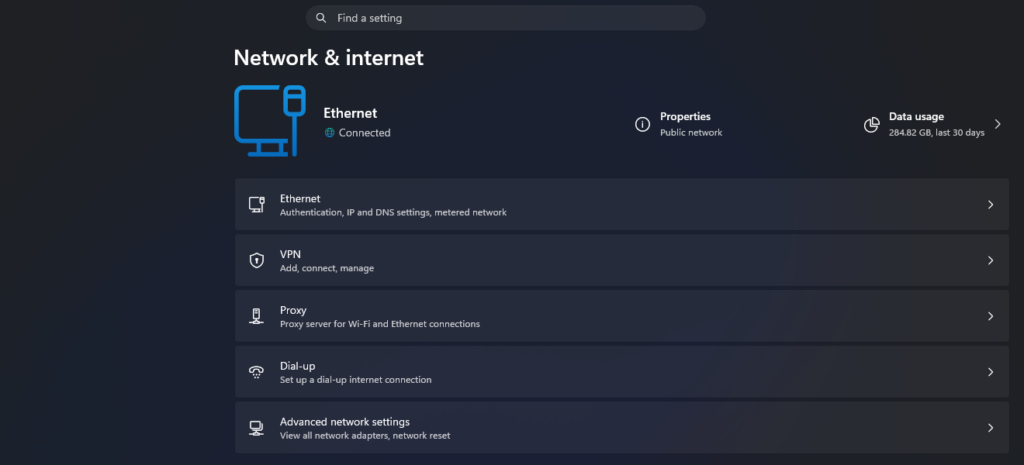
- Scroll down to the list of connection properties.
- Look for IPv4 address. That’s your local IP address.
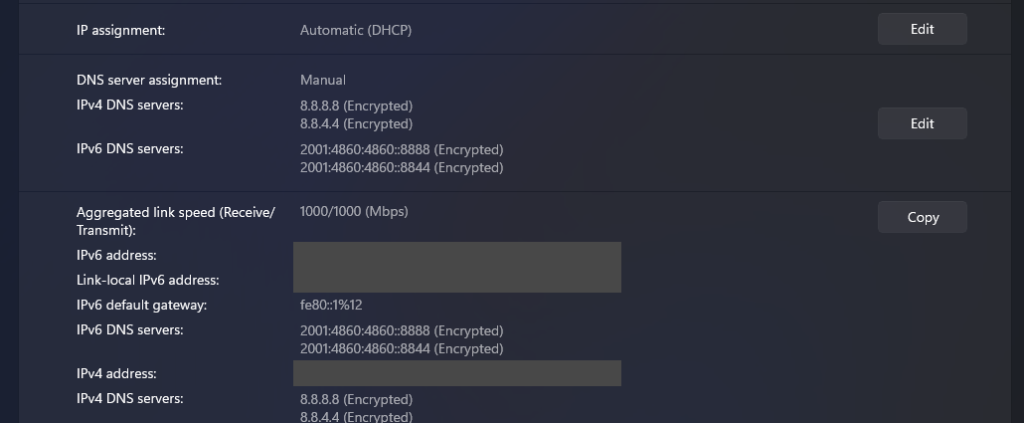
On the same page, you’ll also find other useful details, such as IPv6 address, IPv4 DNS servers, and Physical address (MAC). To copy all of these properties at once, select the Copy button next to them, and then paste them wherever you need.
Method 2: View All Adapters in Advanced Network Settings
If your PC has more than one network adapter (for example, a second Ethernet port or a virtual adapter from a VPN), this page shows the details for all of them in one place.
- Open Settings > Network & internet > Advanced network settings.
- Under More settings, select Hardware and connection properties.
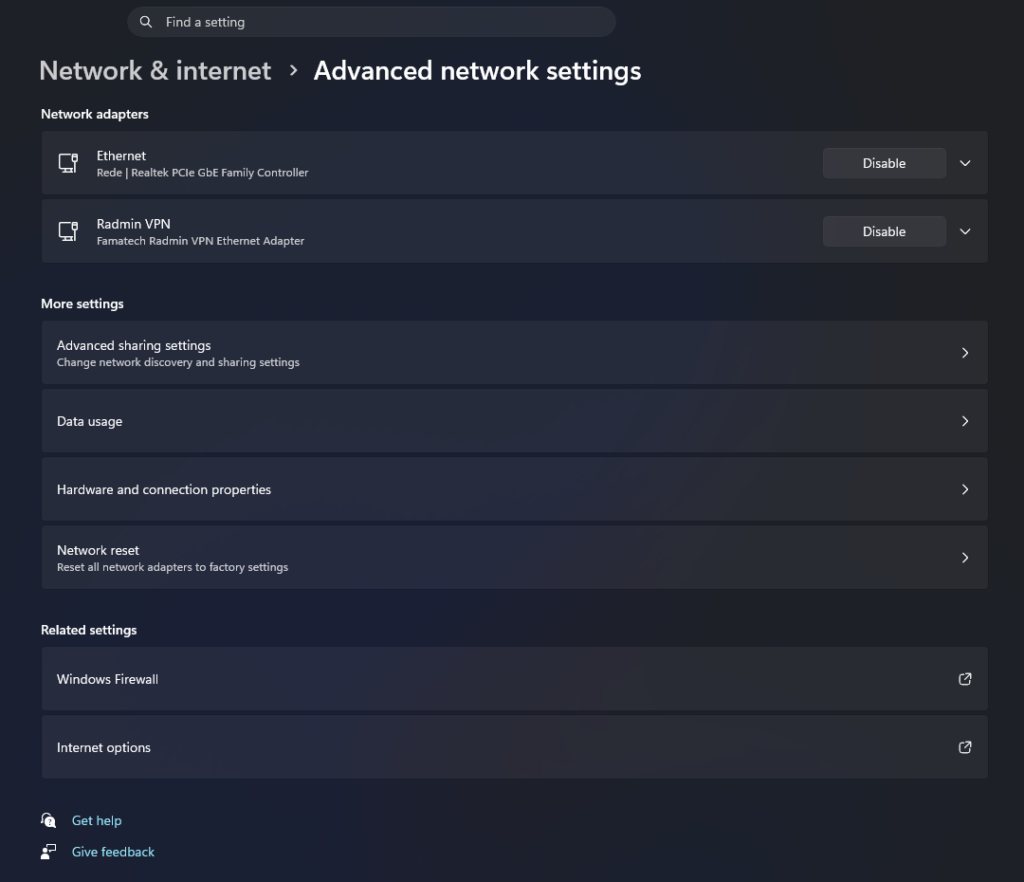
- Find the section for your active adapter (usually named Ethernet) and look for IPv4 address.
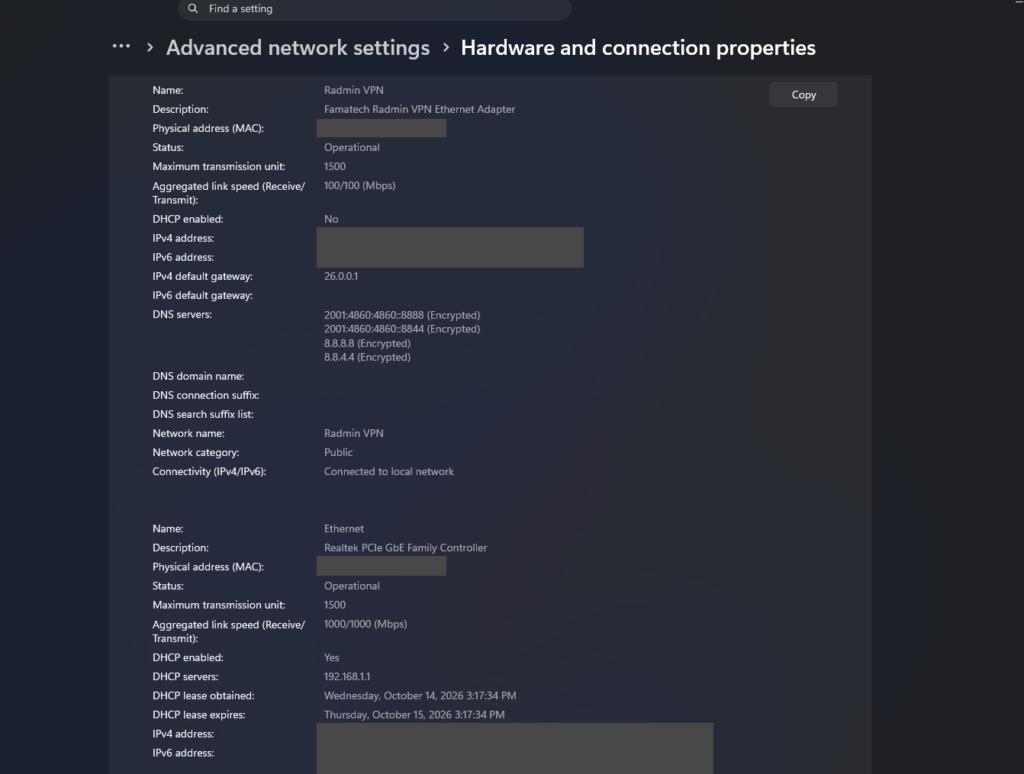
Tip: Adapters that aren’t connected usually show a status like "Disconnected" or "Media disconnected", so focus on the one that shows as connected (for example, Operational).
Method 3: Use the ipconfig Command in Terminal
The ipconfig command shows your IP address and other network details in seconds. It’s the method support technicians most often ask you to use.
- Right-click the Start button and select Terminal.
- Type the following command and press Enter:
ipconfig- Find the section for your connection, usually called Ethernet adapter Ethernet.
- Look for the line IPv4 Address. That’s your local IP address.
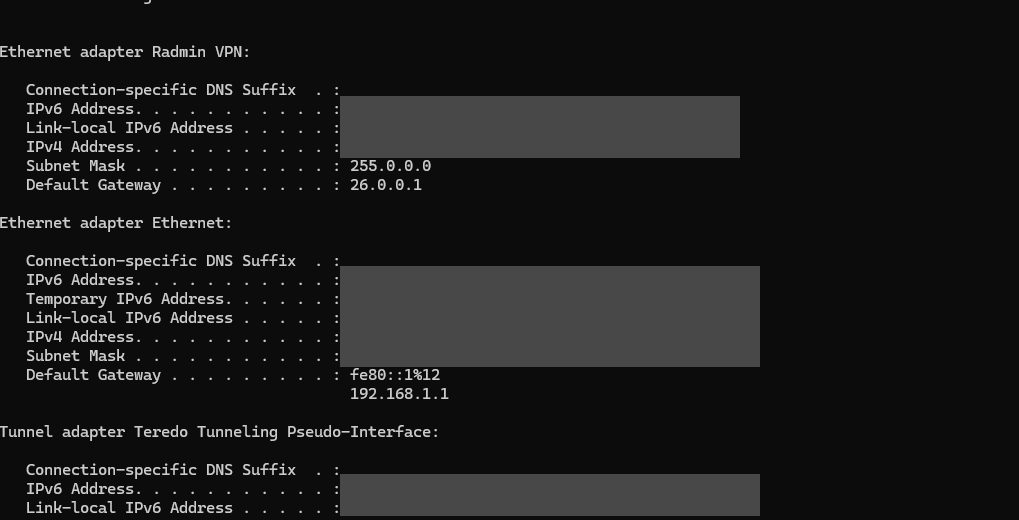
The same section also shows the Default Gateway, which is usually your router’s IP address. You can type that address into a web browser to open your router’s settings page.
For more details, including your MAC address and DNS servers, use:
ipconfig /allMethod 4: Check Task Manager
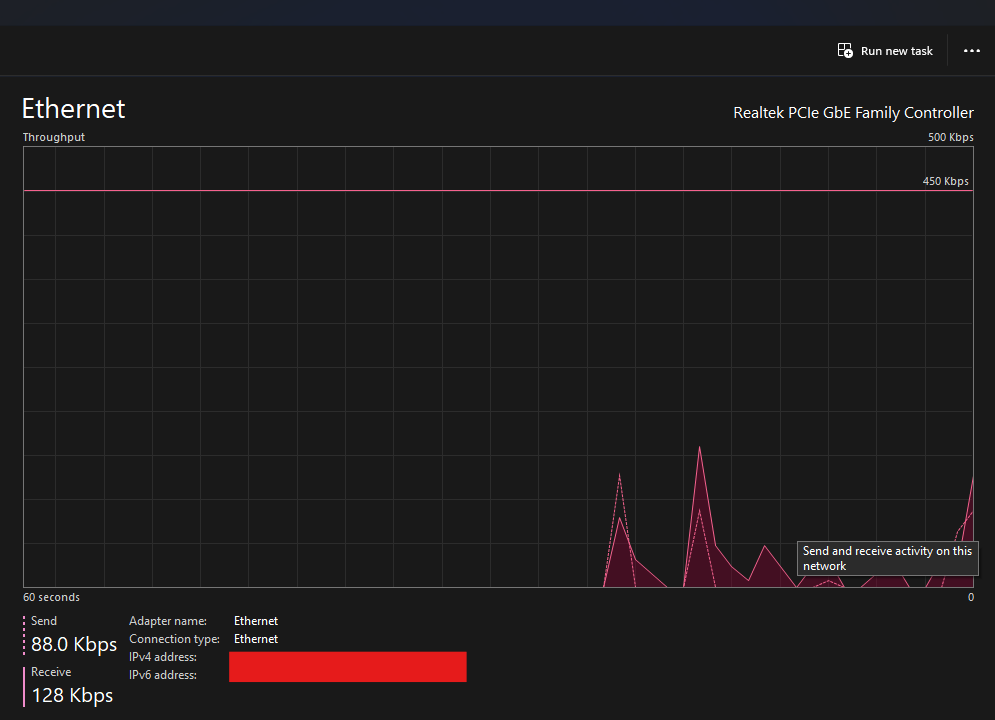
Task Manager also shows your IP address, which is handy if you already have it open.
- Press Ctrl + Shift + Esc to open Task Manager.
- Select Performance in the left menu.
- Select Ethernet.
- Look at the bottom of the window for IPv4 address.
Method 5: Use Control Panel
If you prefer the classic interface, you can find your IP address in the Network Connections window.
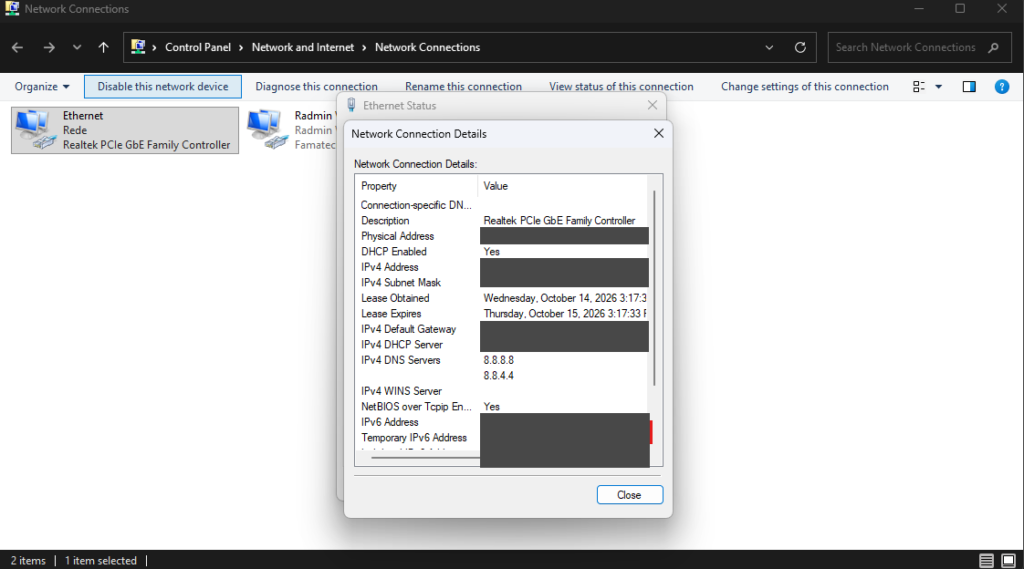
- Press Windows + R, type
ncpa.cpl, and press Enter. - Right-click your Ethernet adapter and select Status.
- Select Details….
- In the Network Connection Details window, look for IPv4 Address.
How to Find Your Public IP Address
Your public IP address is assigned to your router, so Windows doesn’t show it in its network settings. The simplest way to find it:
- Open your web browser (for example, Microsoft Edge).
- Search for what is my IP.
- Many search engines show your public IP address at the top of the results. If yours doesn’t, open one of the "what is my IP" websites listed in the results.
You can also find it on your router’s status page, usually listed as WAN IP or Internet IP. The exact location depends on your router model.
Keep in mind that your public IP can change from time to time, depending on your internet provider. If you use a VPN, websites will see the VPN server’s IP address instead of yours.
What Your IP Address Can Tell You
Your local IP address can also give you a quick clue about your connection:
- 192.168.x.x, 10.x.x.x, or 172.16.x.x to 172.31.x.x: Normal. Your PC received an address from your router.
- 169.254.x.x: Your PC couldn’t get an address from your router. This is called an APIPA address, and it usually means there’s a connection problem, such as an unplugged cable, a router issue, or a network setting that needs to be reset.
- No IPv4 address at all: Check that the cable is connected and that the Ethernet adapter is enabled.
If you see a 169.254.x.x address, try restarting your router and PC first. If the problem continues, resetting your network settings may help.
Is It Safe to Share Your IP Address?
Sharing your local IP address with someone helping you on your own network is generally low risk, since it only works inside your network. Be more careful with your public IP address: it can reveal your approximate location (often the city or region) and your internet provider. Only share it with people and services you trust, and avoid posting it publicly, for example in forum posts or screenshots.
FAQ
Why does my IP address change?
Most routers assign local IP addresses automatically using DHCP, and those addresses can change when your PC or router restarts. If you need a fixed address (for example, for port forwarding), you can reserve one for your PC in your router’s settings, or set a static IP in Windows.
What is the difference between IPv4 and IPv6?
IPv4 addresses use four numbers separated by dots (like 192.168.1.25). IPv6 addresses are longer and use letters, numbers, and colons. Both can work at the same time. For most home troubleshooting, the IPv4 address is the one you need.
Is the Default Gateway the same as my IP address?
No. The Default Gateway is usually your router’s local IP address. Your PC sends traffic to the gateway, which then forwards it to the internet.